

Deleting Personal Data after a specified period of time (outlined in the University’s Records Retention Schedule) is a legal requirement, but what if some data slips through the net?
All of our OneDrives contain files that are automatically saved and easy to forget about. Each one sucks up the University’s limited and expensive storage and has the potential to cause a headache if the applicable Subject Access Request (SAR) is submitted.
So where do these pesky pockets of Personal Data lie and how can we get rid of them?
The Hidden Files
Every spreadsheet you send in a Teams message, every report you ask Copilot to proofread, every document you scan on a University printer, is automatically copied into a folder in your OneDrive. The same applies for every email attachment that has ever been sent to you!
And this doesn’t even include every screenshot you’ve ever taken and every document you’ve ever downloaded.
All these saved documents and images add up and should be periodically reviewed and potentially deleted (remember that these are just copies and you will have the originals elsewhere, except for downloads and screenshots).
So, start the new semester uncluttered and quickly go through your files. Here is how you find them:
- Open OneDrive
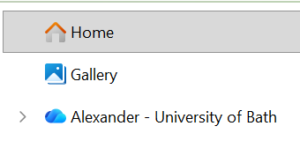
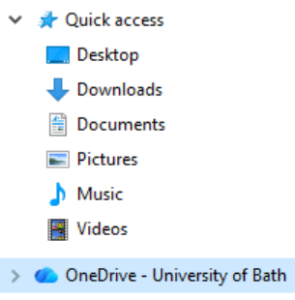
- Open your file manager and click on OneDrive on the left-hand side of your screen. It has a blue cloud for a logo and may be labelled with either your name or ‘OneDrive - University of Bath’.
- Email attachments
- Found in the OneDrive folder Attachments.
- For this reason, amongst others, we highly recommend sending links to files instead of attachments.
- Files sent in Teams messages
- Found in the OneDrive folder Microsoft Teams Chat Files.
- Files uploaded to Copilot
- Found in the OneDrive folder Microsoft Copilot Chat Files.
- Documents scanned by a University printer
- Found in the OneDrive folder Apps and then Scans.
- Screenshots/snippets taken
- Found in the OneDrive folder Pictures and then Screenshots.
- Teams meeting recordings
- Found in the OneDrive folder Recordings.
- Only contains the recordings for meetings that you have organised, and these are automatically deleted after 120 days.
- Files downloaded, either from the internet or emails
- These are saved directly onto your computer (not OneDrive) and are stored under Downloads on the left-hand side of your file manager (underneath ‘Desktop’).
Too Long, Didn’t Read
- Documents are automatically saved onto your computer, adding to the University’s storage and potentially causing you to breach your legal obligation to delete Personal Data within a specified time period.
- These include email attachments that you have received, files that you have sent over Teams or uploaded to Copilot, and documents scanned by University printers.
- These are found in your OneDrive folder and should be periodically reviewed and deleted (they are just copies, you will have the originals saved elsewhere).
Subscribe to the Information Governance Newsletter to learn more and be kept in the loop😊
Respond